How do you use App Store custom product pages and Google Play custom store listings?
Custom product pages on the App Store and custom store listings on Google Play let you show different screenshots, text and videos to different audiences, so the store page matches the ad or link that brought someone there. Here is how each works, how to map pages to campaigns, what to change on each page and how to measure the lift in installs.
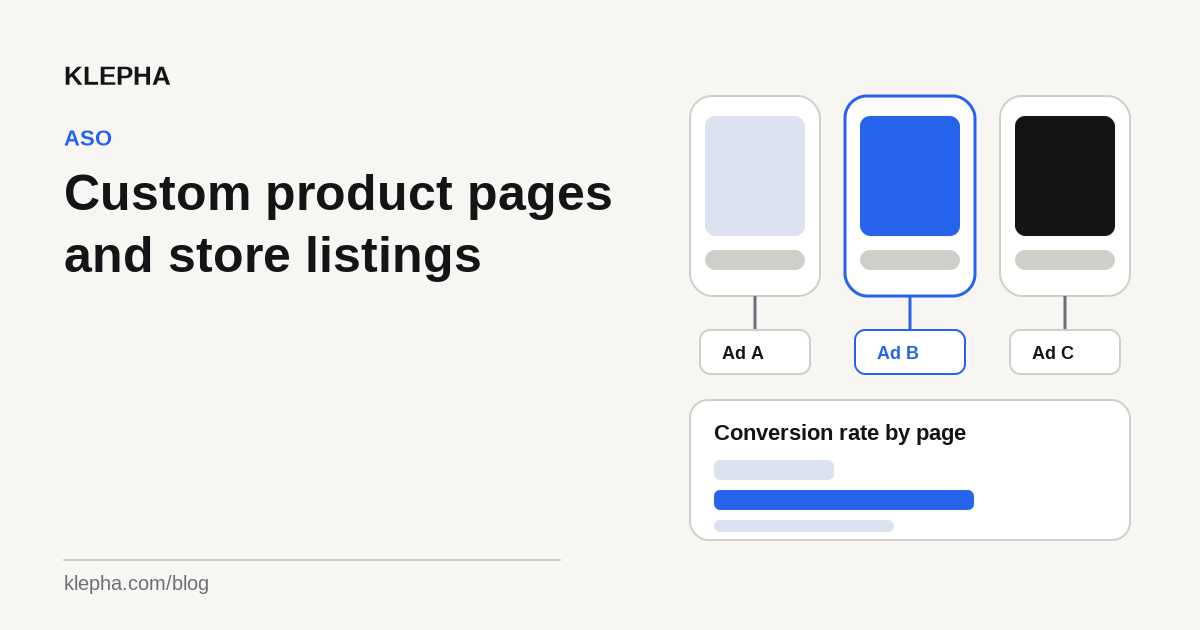
Custom product pages let iOS developers publish up to 70 extra versions of their App Store product page, each with its own screenshots, promotional text and app previews and a unique URL; custom store listings let Android developers create up to 50 tailored Google Play listings, targeted by country, search keyword, user state, ads traffic or a unique URL. You use them to make the store page match the promise of the ad, email or web page that sent the visitor, which typically raises the share of visitors who install.
Apple reports that developers see an average 2.5 percentage point higher conversion rate when they send people to a custom product page, a 156% increase over the 1.6% average conversion rate on default product pages. Your results will vary, so measure each page against your default page. The steps below cover setup, matching and measurement on both stores.
Key takeaways
- Limits: up to 70 custom product pages on the App Store; up to 50 custom store listings on Google Play.
- Apple changes: screenshots, promotional text and app previews, plus optional keywords and a deep link per page.
- Google Play changes: app name, icon, descriptions and graphics, with targeting by country, keywords, user state, ads traffic or URL.
- One message per page: match each page to one campaign theme or audience, not to every ad you run.
- Measure against the default: compare conversion rate, retention and revenue per page in App Analytics and Play Console.
What are custom product pages and custom store listings?
Every app has one default store page. That page has to speak to everyone: people who searched a keyword, saw a social ad about one feature, or clicked a link in a newsletter about another. Custom pages remove that compromise.
Custom product pages (App Store) are additional versions of your iPhone and iPad product page. Apple says each can highlight "a particular sport, character, show, or gameplay feature, even seasonal or culturally relevant content," and each has a unique URL. They can be used in Apple Ads, shared in your own communications, and can appear in App Store search results for keywords you assign.
Custom store listings (Google Play) are tailored versions of your Play listing. Google describes them as a way to "tailor your app's store listing to appeal to specific user segments or to users who visit your listing via a unique custom store listing URL."
How do the App Store and Google Play options compare?
| App Store custom product pages | Google Play custom store listings | |
|---|---|---|
| Maximum number | 70 per app | 50 per app |
| What you can customise | Screenshots, promotional text, app previews (per localization) | App name, icon, short and full description, graphic assets including screenshots |
| Shared across versions | App name, icon, description and other metadata stay as on the default page | Contact details, privacy policy and app category |
| How visitors reach it | Unique URL, Apple Ads, StoreKit rendered ads, assigned search keywords, editorial placements | Unique URL (&listing= parameter), country, search keywords, user state, custom audiences, Google Ads traffic |
| Ads integration | Apple Ads Today tab, Search tab and search results ads, including ad variations | Google Ads app campaigns via ad group ID; currently shown on AdMob traffic only |
| Deep links | Yes, per page (iOS 18 and iPadOS 18 or later) | Not part of the listing feature |
| Review | Metadata reviewed, independent of an app update | Listing reviewed and approved before use |
| Translations | Set per localization | Not automatically translated; you choose a default language and add translations |
Google Play's audience targeting is broader. Google lists these segments: churned users, lapsed users (no open in 28 days), non buyers, one time buyers, repeat buyers, lapsed buyers (no purchase in 180 days), ads traffic, country or region, pre registration, search keywords and custom audiences. That makes Play listings useful for re engagement as well as acquisition.
How do you match pages to campaigns and audiences?
The principle is continuity: the store page should look like the next step of the ad, not a different conversation. Build a simple map before you design anything.
| Traffic source or audience | Page theme | Where to connect it |
|---|---|---|
| Social ad about feature A | Screenshots and first line focused on feature A | Custom URL in the ad (both stores) |
| Search ads for a keyword cluster | Screenshots that answer that search intent | Apple Ads ad variation; Play search keyword targeting |
| Seasonal campaign | Seasonal content, limited time offer in promo text | Custom URL in email, web and ads |
| Market with different needs | Local content, local examples | Play country targeting; Apple localization of the page |
| Lapsed or churned users (Android) | What is new since they left | Play lapsed or churned user targeting |
| Website or blog section | Feature that the page discusses | Custom URL in the page's app download links |
Start with three to five pages for your highest volume sources, not seventy. Each page you add needs creative, review and measurement; a page with too little traffic will not tell you anything.
Do AI assistants recommend your app?
Klepha's free report shows how ChatGPT, Gemini and Perplexity describe your product and which buyer questions your competitors answer and you do not.
Get my free reportWhat should you change on each page?
- First screenshots. Most visitors judge the page on the first two or three images. Put the feature or outcome the ad promised there, with a short caption. Our guide to App Store screenshot captions covers wording.
- App preview or video. If the campaign used video, reuse the same scene or hook so the visitor recognises it.
- Promotional text (App Store) or short description (Play). Restate the specific benefit or offer in one line.
- Name and icon (Play only). Google lets you vary these per listing. Change them only when there is a clear reason, such as a local brand name; consistency usually helps recognition.
- Keywords (App Store, optional). Assign keywords that match the page's intent. Apple notes that each keyword combination should be unique to one product page.
- Deep link (App Store, optional). Send people who open the app from the page straight to the feature they came for.
Keep everything else consistent with your default page, especially in localized markets, as covered in our app store listing localization guide.
How do you set them up?
App Store Connect
- Create a custom product page, starting from a blank page or a copy of your default page.
- Add screenshots, promotional text and app previews for each localization you need.
- Optionally assign keywords and a deep link.
- Submit the page for review; this can be done without an app update.
- Use the page's URL in your channels, or select it in Apple Ads. Ad networks can pass the page ID in StoreKit rendered ads.
Google Play Console
- Go to Grow users, then Store presence, then Custom store listings.
- Create a new listing, duplicate an existing one, or create one within a group that inherits assets.
- Choose the targeting: country, search keywords, user state, custom audience, ads traffic or a unique URL parameter.
- Enter the details and upload graphics (3 to 8 phone screenshots, PNG or JPEG up to 8 MB each).
- For Google Ads, choose Ads traffic, add the ad group IDs and, once approved, select the listing as a landing page in the app campaign.
How do you measure the lift in installs?
On iOS, App Analytics in App Store Connect shows impressions, downloads, redownloads and conversion rate for each custom product page on the Acquisition tab, and lets you compare each page with your default page. Apple also reports retention and average proceeds per paying user per page, so you can see whether a page brings better users, not just more installs.
On Android, use the store listing performance report in Play Console. Google notes two catches: a listing needs a minimum number of impressions before its data appears in the breakdown, and ads targeted listings currently show only on AdMob traffic, so they will not match your overall app campaign totals.
A simple method that works on both stores:
- Record the baseline. Conversion rate of the default page for the same source over the previous four weeks.
- Change one source at a time. Point one campaign or link at the custom page and leave the others on the default page.
- Compare like with like. Custom page conversion rate versus the default page for that same source, over the same period.
- Look past installs. Check day 7 retention and revenue per user; a page that oversells a feature can lift installs and hurt retention.
- Iterate the winner. Keep the page that wins, then test a new first screenshot against it.
Apple's published average (a 2.5 point lift, from a 1.6% default conversion rate) and the case studies it cites are useful for setting expectations, but they are averages reported by the platform. Judge your pages on your own data. If you are new to the full picture of store metrics, start with an app store optimization audit.
What mistakes should you avoid?
- Too many pages, too little traffic. Results never become clear.
- Pages that promise more than the app delivers. Reviews and retention suffer.
- Forgetting translations on Play. Custom listings are not auto translated, so users may see the wrong language.
- Overlapping country targets on Play. A country can be targeted by only one custom store listing at a time.
- Untracked links. Add campaign parameters to the links that lead to each page, as described in our UTM parameters guide, so web analytics and store analytics tell the same story.
Store pages are one part of discovery; search engines and AI assistants are the others. We compare the three in SEO vs GEO vs ASO, list the disciplines we work across on our expertise page, and show the approach in our case studies.
Sources
- Apple Developer: Custom product pages on the App Store. Accessed November 23, 2026. Limit of 70 pages, customisable elements, keywords, deep links, review, Apple Ads use, App Analytics measurement and the 2.5 percentage point average lift.
- Play Console Help: Create custom store listings to target specific user segments. Accessed November 23, 2026. Limit of 50 listings, targeting options, customisable fields, URL format, Google Ads targeting, translations and setup steps.
- Apple Developer: Configure custom product pages in App Store Connect. Linked from Apple's custom product pages overview; accessed November 23, 2026.
Frequently asked questions
How many custom product pages can I create on the App Store?
Apple allows up to 70 additional versions of your product page for iPhone and iPad. Each can have its own screenshots, promotional text and app previews, and its own unique URL.
How many custom store listings can I create on Google Play?
Google Play allows up to 50 custom store listing pages. Your existing listing becomes the default store listing shown to users you do not target with a custom listing.
Can custom product pages appear in App Store search results?
Yes. Apple lets you assign keywords to a custom product page so it appears in search results for those keywords instead of your default page. Apple advises that each keyword combination should be unique to a single product page.
Do Google Play custom store listings work with Google Ads app campaigns?
Yes. You target Ads traffic, add the ad group IDs and select the approved listing as a landing page in Google Ads. Google notes that ads targeted listings currently display on AdMob traffic only, so numbers will not match total app campaign results.
How do I measure whether a custom product page works?
Compare its conversion rate with your default page for the same traffic source over the same period. On iOS use App Analytics, which also shows retention and proceeds per page. On Android use the store listing performance report in Play Console.